Stopping a Mouse Infestation: A Keyboard-Only Haven
Introduction
For some years I have been trying to reduce my usage of the mouse. My precision is not very good and using it for extended periods leads to discomfort (moving the hand off the keyboard, clicking, moving the cursor across the screen).
Last year I have also done some research and experiments with custom (mechanical, split, ortholinear) keyboards and layouts. Many designs consider the mouse as a second-class citizen, minimizing the need to divert attention from typing. As a side note, this article about split keyboards is a good read.
I have made some small experiments in the past (e.g., with vimperator, or using a tiling window manager), yet never really dedicated time to get rid of the mouse. Nevertheless, one thing that has been true forever is I largely prefer a command-line application over a GUI.
This post is a response to the problem. Besides listing softwares that can be controlled mostly with the keyboard, it also aims at being a tutorial/basic reference for a daily use.
It is broken down into multiple parts:
A Small Note on Hardware
Summarizing which hardware I use can help to understand some choices.
I use laptops, mainly (old) Thinkpads from 2015 to 2021, ranging from 12" to 14", with at least 8GB of RAM and 2-cores (4 threads). They all run GNU/Linux (Arch, Debian, Fedora) or FreeBSD. They work very well for my usages despite their age, and given the current state-of-the-world (price hikes, climate change), I believe it is better to hold on them as long as possible.
When using an external screen, it is either a 16:9 1440p or an ultra-wide 3440x1440.
I also have a bunch of custom keyboards, 34-keys split Chocofi, 58-keys split Lily58, 48-keys ortholinear Planck, and a Keychron K3 Pro.
This has several implications for the software side:
- need to unify the configuration;
- need to minimize memory usage;
- need to minimize mouse movements on the ultra-wide screen.
Part 0: The Foundation
Window Manager: i3/Sway
My window manager of choice is i3 (on X) or Sway (on Wayland). Sway is designed to be compatible with i3, meaning I can switch from one to the other with minimal configuration changes.
I tend to have one or two applications at most per workspace, having windows side-by-side, and dedicating a workspace to a particular task.
Terminal Emulator: Ghostty
I recently moved from Alacritty to Ghostty, mainly for the possibility to split the window (useful when starting a new terminal would mess up with my current window layout) and for being able to display images in the terminal.
Cheat sheets are a precious tool to learn how to use it. 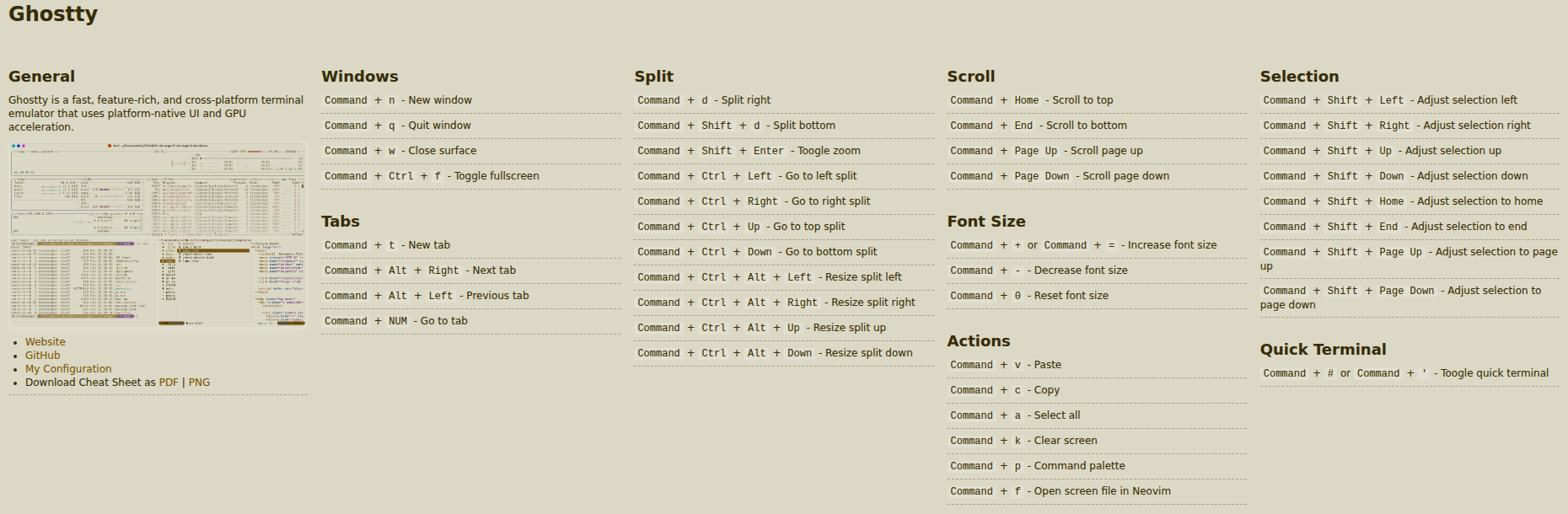
I've added the following to the configuration (~/.config/ghostty/config) so that new windows open in the home directory instead of the directory of the previously opened window.
gtk-single-instance = false
working-directory = home
window-inherit-working-directory = true
One important feature for a mouse-less environment is to be able to select text in the terminal window via the keyboard only. There is no easy way to do this in Ghostty. The simplest solution I've found is to follow this procedure:
- Type the name of your text editor of choice (nvim, vi, vim...)
- Press
super+ctrl+shift+jto save the screen content to a file and copy the file path to the clipboard - Press
ctrl+shift+vto paste the screen file path to the terminal - Type
enter. You are now in your editor, where you can do whatever you want, e.g., copy text - Exit your editor and paste the text into the command line
This makes a great transition to discuss about my text editor.
Text editor: Neovim
I install neovim everywhere I need a text editor, and I use it for every kind of text, be it a todo list, code, etc. The rationale includes: similarities with vi (installed almost anywhere), does not need a GUI, no superfluous functionalities, no crazy shortcuts to run some commands (thinking of Emacs here). In short, it does the job.
The main plugins I have installed are:
- telescope, used to search for a string in many files; useful for browsing through code. The main shortcuts are (I should look at the documentation and add useful ones):
<leader>ff: find files<leader>fg: search for a string across the current working directory<leader>fb: list opened buffers
- vivify to preview markdown files while editing
- LSP for Rust, C, markdown, LaTeX, Python
And my <leader> key is space, because why not, it's easily accessible.
File Explorer: Yazi
While I mostly use the standard UNIX tools to manage files (mv, cp, cd, and so on), if I need a file-explorer then it is the TUI-based Yazi.
One use-case for Yazi over the terminal is when searching for some image or document: the built-in preview makes it simpler than opening files until I find the right one.
Yazi supports plugins. An interesting one is a mount manager (does not seem to support *BSD at the time of writing).
Here is Yazi cheat sheet: 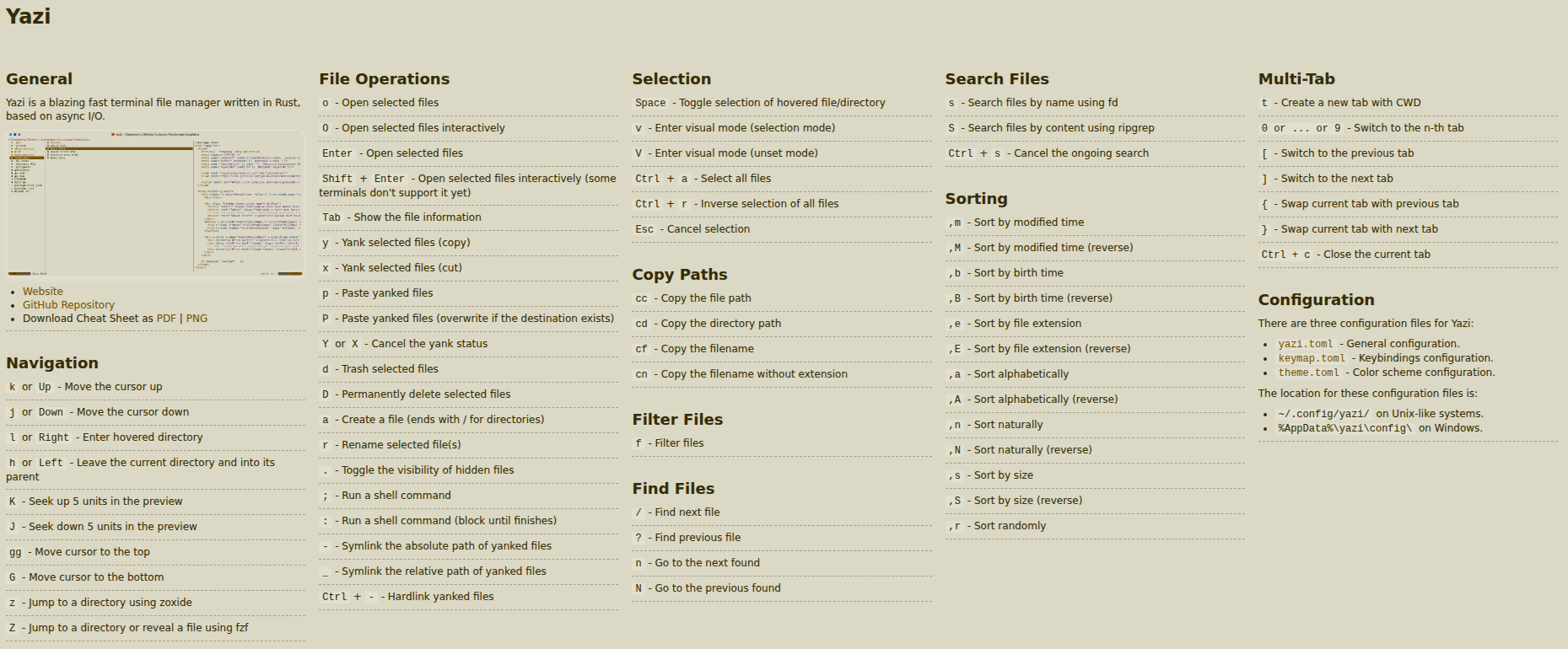
Wifi and Bluetooth Managers
bluetui and impala are both TUI manager for respectively Bluetooth and Wifi. Unfortunately they do not run on FreeBSD, where I need to do everything by hand.